To remove a local user account on Windows Server, you can follow a similar process as on a Windows client operating system. Here’s how you can remove a local user account on Windows Server:
Steps to Remove a Local User Account on Windows Server
- Open Local Users and Groups:
- Press
Win + Rto open the Run dialog. - Type
lusrmgr.mscand pressEnter. This opens the Local Users and Groups management console.
- Press
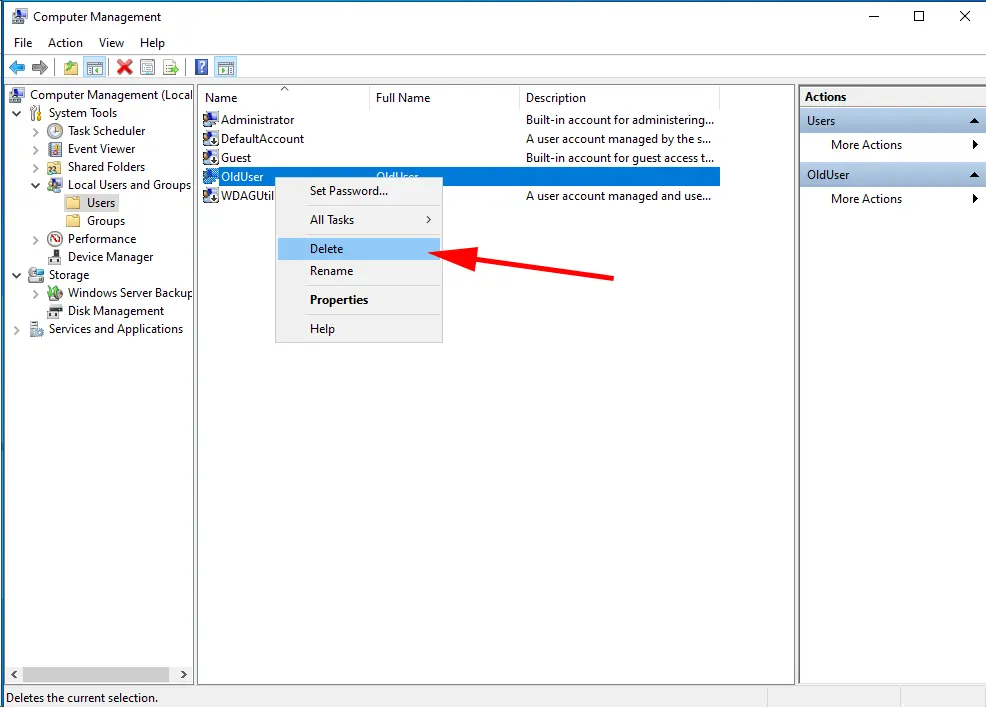
- Navigate to Users:
- In the left-hand pane, expand
Users. This will display a list of all local user accounts on the server.
- In the left-hand pane, expand
- Select the User Account:
- Right-click on the user account you want to remove.
- Select
Delete.
- Confirm Deletion:
- A confirmation dialog will appear asking if you want to permanently delete the user account and its associated files. Click
Yes.
- A confirmation dialog will appear asking if you want to permanently delete the user account and its associated files. Click
- Verify Removal:
- Once deleted, the user account will no longer appear in the list of local users.
Additional Considerations
- Administrator Privileges: You need to be logged in with an account that has administrative privileges on the server to delete a user account.
- Data Loss: Deleting a user account will remove all files associated with that account, including desktop files, documents, downloads, and settings specific to that user.
- Backup Important Data: Before deleting a user account, ensure that you have backed up any important data associated with that account.
Example
Suppose you want to remove a local user account named JohnDoe on your Windows Server:
- Open
lusrmgr.mscusingWin + R. - Navigate to
Usersand findJohnDoein the list. - Right-click on
JohnDoeand selectDelete. - Confirm the deletion by clicking
Yes.
Alternative Method using Command Prompt
You can also use the Command Prompt to delete a local user account:
- Open Command Prompt as Administrator (
Win + X, then selectCommand Prompt (Admin)). - Type the following command and press
Enter:sql
net user JohnDoe /delete
- Replace
JohnDoewith the username of the account you want to delete. - Confirm the deletion if prompted.
Summary
Deleting a local user account on Windows Server removes it from the server entirely, including all associated files and settings.