
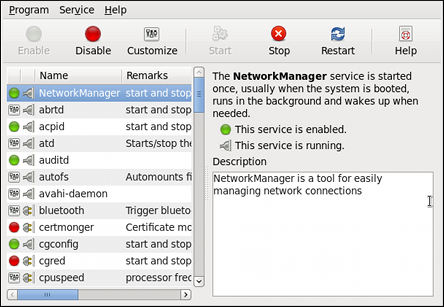
Controlling services and daemons is a fundamental task in managing a Red Hat Enterprise Linux (RHEL) system. This detailed guide will help you understand how to start, stop, enable, disable, and check the status of services using systemctl, the primary tool for managing services in RHEL 7 and later.
Understanding Systemd
Systemd is the default service manager in RHEL 7 and later. It manages services, processes, and other system components through the systemctl command. Services and daemons are typically controlled via unit files, which are configurations that describe how to manage these services.
Common Systemctl Commands
1. Checking the Status of a Service
To check if a service is active and running:
sudo systemctl status [service_name]
Example:
sudo systemctl status httpd
Starting a Service
To start a service immediately:
sudo systemctl start [service_name]
Example:
sudo systemctl start httpd
Stopping a Service
To stop a service immediately:
sudo systemctl stop [service_name]
Example:
sudo systemctl stop httpd
Restarting a Service
To restart a service (stop and then start):
sudo systemctl restart [service_name]
Example:
sudo systemctl restart httpd
Reloading a Service
To reload the configuration of a service without restarting:
sudo systemctl reload [service_name]
Example:
sudo systemctl reload httpd
Enabling a Service
To enable a service to start automatically at boot:
sudo systemctl enable [service_name]
Example:
sudo systemctl enable httpd
Disabling a Service
To disable a service from starting automatically at boot:
sudo systemctl disable [service_name]
Example:
sudo systemctl disable httpd
Checking if a Service is Enabled
To check if a service is set to start at boot:
sudo systemctl is-enabled [service_name]
Example:
sudo systemctl is-enabled httpd
Listing All Services
To list all services and their statuses:
sudo systemctl list-units --type=service
Advanced Systemctl Commands
Masking a Service
Masking a service prevents it from being started manually or automatically.
sudo systemctl mask [service_name]
Example:
sudo systemctl mask httpd
To unmask a service:
sudo systemctl unmask [service_name]
Example:
sudo systemctl unmask httpd
Viewing Logs for a Service
To view logs for a service, use the journalctl command:
sudo journalctl -u [service_name]
Example:
sudo journalctl -u httpd
Managing Systemd Units
A unit file is a configuration file that defines how a service or daemon should behave. Unit files are stored in the following directories:
/etc/systemd/system/(custom unit files)/usr/lib/systemd/system/(default unit files provided by packages)
Creating a Custom Unit File
- Create a unit file in
/etc/systemd/system/:
sudo nano /etc/systemd/system/myservice.service
- Define the service in the unit file:
[Unit]
Description=My Custom Service
After=network.target
[Service]
ExecStart=/usr/bin/myservice
Restart=always
[Install]
WantedBy=multi-user.target
- Reload systemd to recognize the new unit file:
sudo systemctl daemon-reload
- Start and enable the custom service:
sudo systemctl start myservice
sudo systemctl enable myservice
Common Unit File Directives
- [Unit] Section:
Description: A brief description of the service.After: Specifies the ordering of service startup.- [Service] Section:
ExecStart: The command to start the service.ExecStop: The command to stop the service.Restart: Specifies the restart behavior (e.g.,always,on-failure).- [Install] Section:
WantedBy: Specifies the target that the service should be enabled for (e.g.,multi-user.target).
Example Workflow for Managing a Service
- Check the status of a service:
sudo systemctl status sshd
- Start the service if it’s not running:
sudo systemctl start sshd
- Enable the service to start at boot:
sudo systemctl enable sshd
- View logs for the service to troubleshoot any issues:
sudo journalctl -u sshd
- Create a custom service unit file:
sudo nano /etc/systemd/system/mycustomservice.service
Add the following content:
[Unit]
Description=My Custom Service
After=network.target
[Service]
ExecStart=/usr/bin/mycustomservice
Restart=always
[Install]
WantedBy=multi-user.target
Reload systemd:
sudo systemctl daemon-reload
Start and enable the service:
sudo systemctl start mycustomservice
sudo systemctl enable mycustomservice
Troubleshooting Tips
- Check service status to get detailed information on failures:
sudo systemctl status [service_name]
- View logs using
journalctlfor more detailed output:
sudo journalctl -u [service_name]
- Verify unit file syntax and configurations:
sudo systemctl daemon-reload
- Check dependencies and ordering if services are not starting as expected:
sudo systemctl list-dependencies [service_name]
By mastering these commands and understanding the structure of unit files, you can effectively control services and daemons on a RHEL system, ensuring your system runs smoothly and efficiently.

