
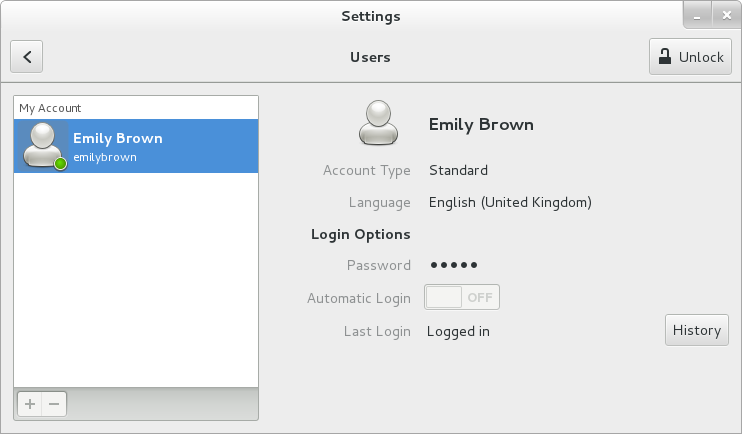
Managing local users and groups on Red Hat Enterprise Linux (RHEL) involves tasks like creating, modifying, and deleting user accounts and groups, as well as setting permissions and managing user environments. Here’s a detailed guide on how to perform these tasks.
Adding and Managing Users
Add a New User:
sudo useradd [username]
Create a new user with a home directory:
sudo useradd -m [username]
Set Password for the User:
sudo passwd [username]
Modify User Details:
sudo usermod [options] [username]
Change the user’s home directory:
sudo usermod -d /new/home/directory [username]
Add the user to additional groups:
sudo usermod -aG [groupname] [username]
Delete a User:
sudo userdel [username]
Delete a user and their home directory:
sudo userdel -r [username]
Adding and Managing Groups
Create a New Group:
sudo groupadd [groupname]
Modify Group Details:
sudo groupmod [options] [groupname]
Change the group name:
sudo groupmod -n [newgroupname] [oldgroupname]
Delete a Group:
sudo groupdel [groupname]
Viewing User and Group Information
List All Users:
cat /etc/passwd
List All Groups:
cat /etc/group
View Specific User Information:
id [username]
Check Groups a User Belongs To:
groups [username]
Managing User Environments
· Default User Files:
- Files in /etc/skel/ are copied to the new user’s home directory when a new user is created. Add default files like .bashrc or .profile here.
· Edit User’s Shell Configuration:
- Edit the user’s .bashrc or .profile in their home directory to customize their environment.
nano /home/[username]/.bashrc
Managing User and Group Permissions
Change Ownership of Files and Directories:
sudo chown [user]:[group] [file or directory]
Change File Permissions:
sudo chmod [permissions] [file or directory]
For example, to give the owner full permissions and read-only permissions to others:
sudo chmod 755 [file or directory]
User and Group Administration Example Workflow
Create a new user with a home directory:
sudo useradd -m newuser
Set a password for the new user:
sudo passwd newuser
Create a new group:
sudo groupadd newgroup
Add the new user to the new group:
sudo usermod -aG newgroup newuser
Verify the new user and group:
id newuser
Change ownership of a directory to the new user and group:
sudo chown newuser:newgroup /some/directory
Set directory permissions:
sudo chmod 755 /some/directory
Delete the user and their home directory:
sudo userdel -r newuser
Advanced User and Group Management
Create a user with a specific UID:
sudo useradd -u [UID] [username]
Create a group with a specific GID:
sudo groupadd -g [GID] [groupname]
Create a system user (no home directory, no shell):
sudo useradd -r -s /sbin/nologin [username]
Temporarily lock a user account:
sudo passwd -l [username]
Unlock a user account:
sudo passwd -u [username]
Force a user to change their password on next login:
sudo chage -d 0 [username]
Auditing User Activities
View last login information:
last [username]
View currently logged-in users:
who
View user-specific log information:
sudo cat /var/log/secure | grep [username]
This comprehensive guide should help you manage users and groups effectively on a RHEL system. Adjust commands and configurations as needed for your specific environment.


