
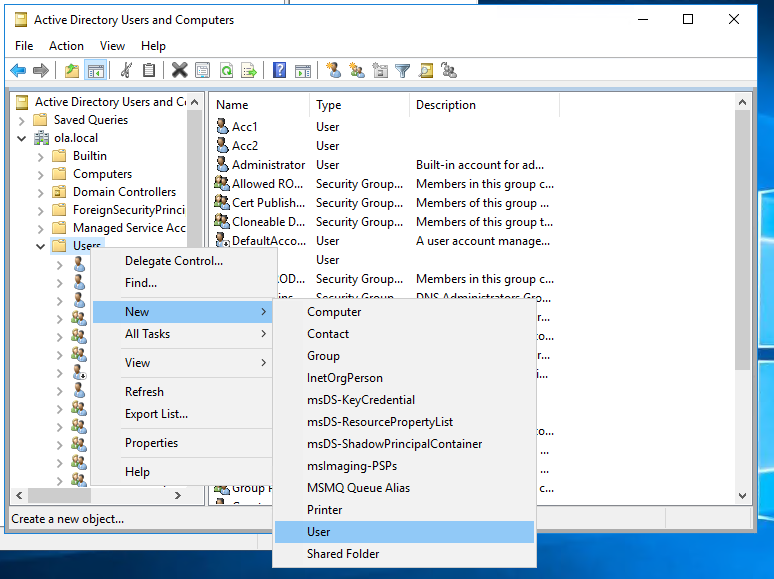
Creating a new domain user in Active Directory is a straightforward process. Here’s how you can create a new user in Active Directory on a Windows Server 2022:
Steps to Create a New Domain User
- Open Active Directory Users and Computers:
- Click on the
Startmenu. - Search for
Active Directory Users and Computersand open it.
- Click on the
- Navigate to the Organizational Unit (OU):
- In the left-hand pane, expand the domain where you want to create the user (e.g.,
example.com). - Navigate to the OU where you want to create the new user (e.g.,
IT Department).
- In the left-hand pane, expand the domain where you want to create the user (e.g.,
- Create a New User:
- Right-click on the OU where you want to create the new user.
- Select
New>User.
- Enter User Information:
- In the
New Object - Userwindow, enter the following details:- First name: Enter the user’s first name.
- Initials (optional): Enter the user’s initials.
- Last name: Enter the user’s last name.
- Full name: This field will auto-populate based on the first and last name.
- User logon name: Enter a unique logon name for the user (e.g.,
jdoe).
- Select the appropriate User logon name suffix (e.g.,
@example.com). - Click
Next.
- In the
- Set User Password:
- Enter and confirm a password for the user.
- Configure password options by checking the appropriate boxes:
User must change password at next logonUser cannot change passwordPassword never expiresAccount is disabled
- Click
Next.
- Complete the User Creation:
- Review the information and click
Finishto create the new user.
- Review the information and click
Example: Creating a User for the Marketing Department
Let’s create a user named John Doe in the Marketing department:
- Open Active Directory Users and Computers:
- Open
Active Directory Users and Computersfrom theStartmenu.
- Open
- Navigate to the Marketing OU:
- Expand the domain
example.com. - Navigate to the
MarketingOU.
- Expand the domain
- Create a New User:
- Right-click the
MarketingOU and selectNew>User.
- Right-click the
- Enter User Information:
- First name: John
- Last name: Doe
- User logon name: jdoe
- Click
Next.
- Set User Password:
- Enter and confirm the password for John Doe.
- Check
User must change password at next logon. - Click
Next.
- Complete the User Creation:
- Review the information and click
Finish.
- Review the information and click
Additional User Configuration (Optional)
After creating the user, you may want to configure additional settings:
- Add User to Groups:
- Open the user’s properties by right-clicking the user and selecting
Properties. - Go to the
Member Oftab. - Click
Addto add the user to the appropriate security groups (e.g.,Domain Users,Marketing Team).
- Open the user’s properties by right-clicking the user and selecting
- Configure Profile and Home Folder:
- In the user’s properties, go to the
Profiletab. - Specify the user profile path and home folder if needed.
- In the user’s properties, go to the
- Account Options:
- In the user’s properties, go to the
Accounttab. - Configure logon hours, account expiration, and other account options.
- In the user’s properties, go to the
Summary
By following these steps, you can create a new domain user in Active Directory on Windows Server 2022. This user will then be able to log on to the domain and access resources based on their group memberships and permissions.


