SSH (Secure Shell) is a protocol used to securely connect to remote systems over a network. It’s widely used for administration and maintenance of servers and network devices. Here’s a detailed note on SSH configuration.
Basic SSH Configuration
SSH configuration involves two main files:
- Client Configuration File:
/etc/ssh/ssh_config(for system-wide settings) or~/.ssh/config(for user-specific settings). - Server Configuration File:
/etc/ssh/sshd_config.
Client Configuration (/etc/ssh/ssh_config or ~/.ssh/config)
The client configuration file can be used to define settings for SSH client behavior. Here’s a basic example of what this file might look like:
Host *
ForwardAgent no
ForwardX11 no
ForwardX11Trusted yes
PasswordAuthentication yes
HostbasedAuthentication no
GSSAPIAuthentication no
BatchMode no
CheckHostIP yes
AddressFamily any
ConnectTimeout 0
StrictHostKeyChecking ask
IdentityFile ~/.ssh/id_rsa
Port 22
Protocol 2
Cipher 3des
ControlMaster auto
ControlPath ~/.ssh/sockets/%r@%h-%p
Explanation of Some Common Directives:
- Host: Specifies the host(s) the configuration section applies to.
*applies to all hosts. - ForwardAgent: Enables or disables forwarding of the authentication agent connection.
- ForwardX11: Enables or disables X11 forwarding.
- PasswordAuthentication: Specifies whether to use password authentication.
- IdentityFile: Specifies a file from which the user’s DSA, ECDSA, or RSA authentication identity is read.
- Port: Specifies the port number to connect to on the remote host.
- StrictHostKeyChecking: If this is set to
yes, ssh will never automatically add host keys to the~/.ssh/known_hostsfile and refuses to connect to hosts whose host key has changed. - ControlMaster: Enables the sharing of multiple sessions over a single network connection.
- ControlPath: Specifies the path to the control socket used for connection sharing.
Server Configuration (/etc/ssh/sshd_config)
The server configuration file controls the behavior of the SSH daemon. Here’s an example configuration with explanations:
Port 22
#Port 2200 # Example of an alternative port for added security
AddressFamily any
ListenAddress 0.0.0.0
ListenAddress ::
# Authentication:
PermitRootLogin no
PubkeyAuthentication yes
PasswordAuthentication yes
PermitEmptyPasswords no
ChallengeResponseAuthentication no
# Logging:
SyslogFacility AUTH
LogLevel INFO
# Customization:
LoginGraceTime 2m
PermitUserEnvironment no
AllowTcpForwarding yes
X11Forwarding yes
PrintMotd yes
PrintLastLog yes
TCPKeepAlive yes
# Security:
MaxAuthTries 6
AllowUsers user1 user2
# Subsystem:
Subsystem sftp /usr/lib/openssh/sftp-server
Explanation of Some Common Directives:
- Port: Specifies the port number that sshd listens on.
- ListenAddress: Specifies the local addresses sshd should listen on.
- PermitRootLogin: Specifies whether root can log in using ssh.
- PubkeyAuthentication: Specifies whether public key authentication is allowed.
- PasswordAuthentication: Specifies whether password authentication is allowed.
- SyslogFacility: The facility used for logging.
- LogLevel: The verbosity level for logs.
- LoginGraceTime: The time allowed for successful authentication.
- MaxAuthTries: The maximum number of authentication attempts permitted per connection.
- AllowUsers: Specifies which users can log in using ssh.
- Subsystem: Configures an external subsystem (such as SFTP server).
Setting Up SSH Key-Based Authentication
Generate SSH Key Pair:
ssh-keygen -t rsa -b 4096 -C your_email@example.com
This command will generate a public and private key in the ~/.ssh directory.
Copy the Public Key to the Server:
ssh-copy-id username@remote_host
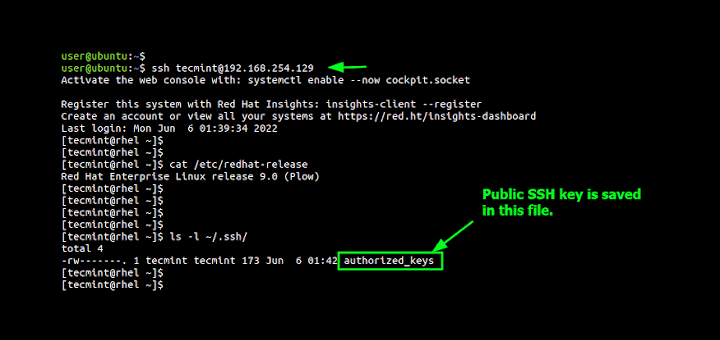
This command copies the public key to the remote host’s ~/.ssh/authorized_keys file.
Connect to the Server Using SSH:
ssh username@remote_host
Additional Tips
- Enhance Security:
- Change the default SSH port from 22 to something else to reduce the risk of automated attacks.
- Disable root login by setting
PermitRootLogin no. - Use strong passwords and change them regularly.
- Limit user access with the
AllowUsersorAllowGroupsdirectives. - Use SSH-Agent for Convenience:
eval “$(ssh-agent -s)”
ssh-add ~/.ssh/id_rsa
- Log and Monitor:
- Regularly check
/var/log/auth.log(or equivalent) for suspicious activity. - Set up fail2ban to protect against brute force attacks.
Conclusion
Proper SSH configuration is crucial for securing remote access to your servers. By understanding and applying the settings in the client and server configuration files, as well as using key-based authentication, you can significantly enhance the security and efficiency of your SSH connections.