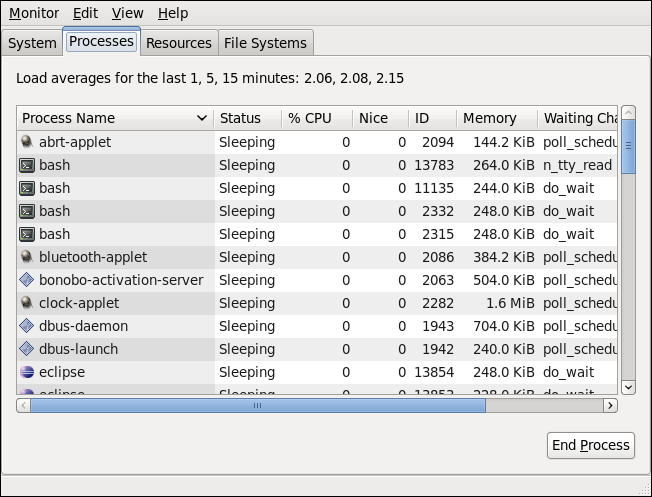
Monitoring and managing Linux processes is crucial for system administration, performance tuning, and troubleshooting. This detailed note will guide you through various tools and commands used to view, manage, and control processes on a Red Hat Enterprise Linux (RHEL) system.
Viewing Processes
ps Command
The ps command provides a snapshot of current processes.
Basic usage:
ps
Detailed information for all processes:
ps aux
· a: Show processes for all users.
· u: Display the process’s user/owner.
· x: Include processes not attached to a terminal.
Full-format listing:
ps –ef
top Command
The top command provides a dynamic, real-time view of running processes.
Basic usage:
top
Common commands within top:
- h: Display help.
- k: Kill a process.
- r: Renice a process.
- d: Change delay interval.
- q: Quit.
htop Command
htop is an interactive process viewer, an enhanced version of top.
Install htop:
sudo yum install htop
Run htop:
htop
Use F10 to quit.
pgrep Command:
The pgrep command searches for processes by name or other attributes.
Basic usage:
pgrep [process_name]
pidof Command:
The pidof command finds the process ID (PID) of a running program.
Basic usage:
pidof [process_name]
Managing Processes
kill Command
The kill command sends signals to processes to terminate them.
Basic usage:
kill [PID]
Send specific signals:
SIGTERM (terminate gracefully):
kill -15 [PID]
SIGKILL (forcefully terminate):
kill -9 [PID]
killall Command
The killall command terminates processes by name.
Basic usage:
killall [process_name]
pkill Command
The pkill command sends signals to processes based on name and other attributes.
Basic usage:
pkill [process_name]
nice and renice Commands
These commands set or change the priority of processes.
Start a command with a specific priority:
nice -n [priority] [command]
Change the priority of an existing process:
renice [priority] -p [PID]
nohup Command
The nohup command runs a command immune to hangups, with output to a non-tty.
Basic usage:
nohup [command] &
bg and fg Commands
These commands manage jobs in the background or foreground.
Background a job:
bg %[job_number]
Foreground a job:
fg %[job_number]
jobs Command
The jobs command lists active jobs.
Basic usage:
jobs
Monitoring System Performance
vmstat Command
The vmstat command reports virtual memory statistics.
Basic usage:
vmstat [interval] [count]
iostat Command
The iostat command reports CPU and I/O statistics.
Basic usage:
Iostat
free Command
The free command displays memory usage.
Basic usage:
free –h
sar Command
The sar command collects, reports, or saves system activity information.
Install sysstat package:
sudo yum install sysstat
Run sar:
Sar
dstat Command
The dstat command provides versatile resource statistics.
Install dstat
sudo yum install dstat
Run dstat:
dstat
Viewing Process Details
lsof Command
The lsof command lists open files by processes.
Basic usage:
Lsof
strace Command
The strace command traces system calls and signals.
Trace a running process:
strace -p [PID]
pstack Command
The pstack command prints a stack trace of a running process.
Basic usage:
pstack [PID]
pmap Command
The pmap command reports memory map of a process.
Basic usage:
pmap [PID]
Example Workflow
Check all running processes:
ps aux
Search for a specific process by name:
pgrep httpd
Kill a specific process by PID:
kill 1234
Run a resource-intensive command with lower priority:
nice -n 10 myscript.sh
Monitor system performance interactively:
top
List open files for a specific process:
lsof -p 1234
Trace system calls of a running process:
strace -p 1234
Best Practices
- Regular Monitoring: Regularly monitor system performance and processes to identify and address issues proactively.
- Use Appropriate Commands: Use
niceandreniceto adjust process priorities instead of killing processes indiscriminately. - Logs and Audits: Keep logs and audit trails to monitor process activities and troubleshoot issues.
- Backup Configurations: Always back up important configuration files before making significant changes.
By mastering these commands and tools, you can effectively monitor and manage processes on a RHEL system, ensuring optimal performance and stability.